

Google Ads Scripts: Essential Automation Ideas for Campaign Management
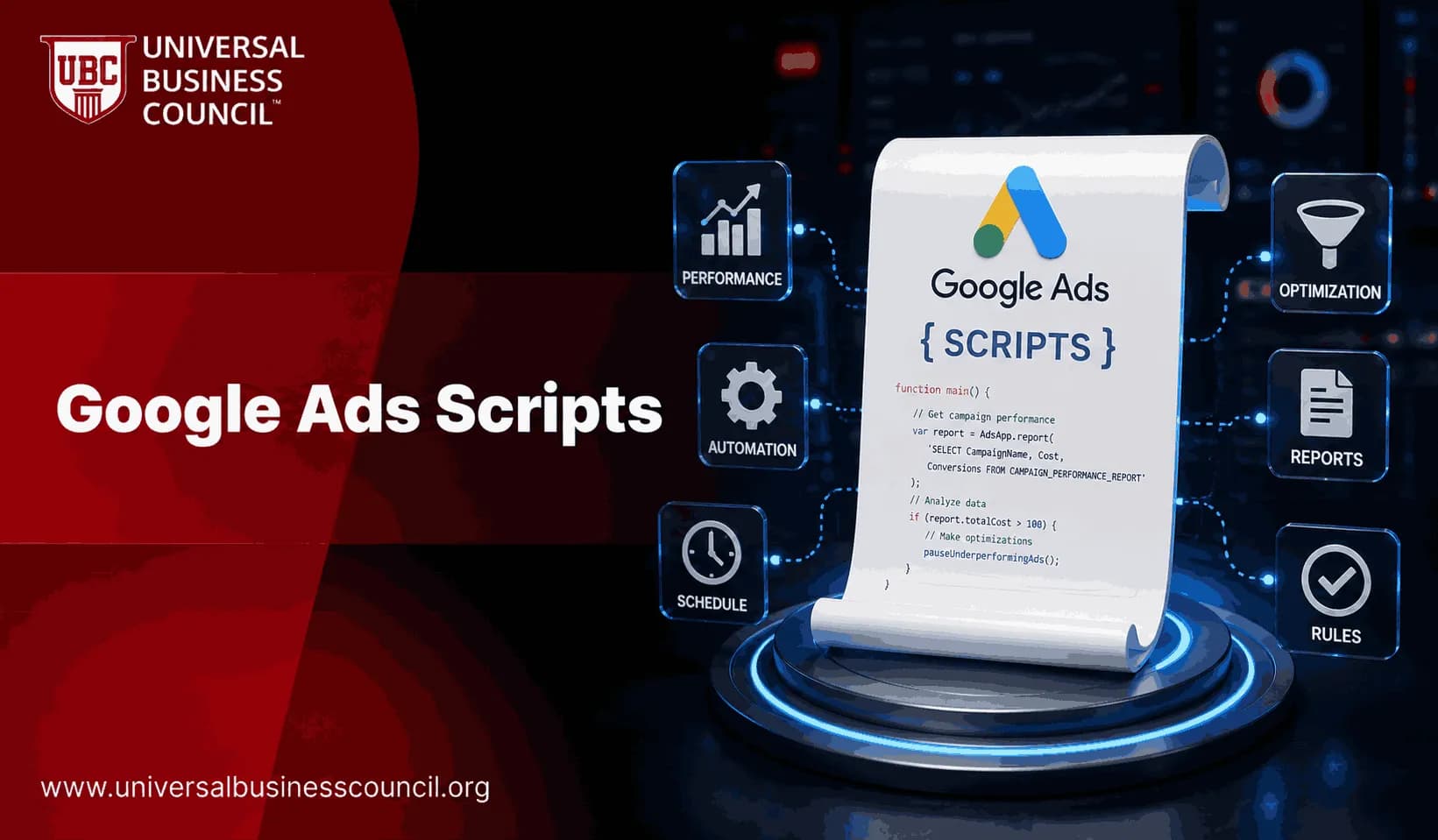
Google Ads Scripts give you a practical way to automate campaign management when the Google Ads interface is too slow, too manual, or too limited for the rules your business actually needs. They are JavaScript snippets that run inside Google Ads and can monitor budgets, change bids, send alerts, build reports, check URLs, and work across manager accounts.
Manage one small account and you may only need a few. Manage multiple brands, locations, products, or clients, and scripts become a control layer. Not a replacement for strategy. A way to stop avoidable mistakes before they cost money.

Using Google Ads Scripts effectively requires more than basic automation knowledge. Professionals also need a solid understanding of campaign structure, bidding strategies, performance monitoring, and account governance. A Certified Google Ads Expert credential helps build these practical skills, enabling marketers to automate repetitive tasks while maintaining control over campaign performance and budget management.
What Google Ads Scripts Do
Google Ads Scripts use JavaScript to interact with account objects such as campaigns, ad groups, keywords, ads, labels, budgets, and reports. Google's own Ads Scripts documentation describes them as a way to programmatically manage and query Google Ads data, including integrations with Google Sheets and external APIs.
You create and run scripts in Google Ads under Tools and Settings > Bulk actions > Scripts. They can run manually or on a schedule: hourly, daily, weekly, or monthly. Manager account scripts can also work across multiple accounts, which is why agencies and enterprise PPC teams use them for governance and reporting.
Why Scripts Still Matter With Smart Bidding and Performance Max
Smart Bidding and Performance Max handle many optimization decisions, but they do not know every business rule. They may not know that a product is out of stock, that sales teams are rejecting a certain lead type, or that finance has a strict monthly cap that cannot be exceeded.
That is where Google Ads Scripts fit best. Use them for:
Governance: budget caps, compliance checks, naming rules, and approval monitoring.
Monitoring: alerts for spend spikes, tracking failures, sudden drops, and broken pages.
Reporting: scheduled exports to Google Sheets for stakeholders.
Custom logic: rules based on inventory, weather, CRM data, margin bands, or seasonality.
To be blunt, scripts are the wrong tool if you want a one-click setup with no maintenance. They are the right tool when standard automation gets close, but not quite specific enough.
Automation delivers the best results when it supports a well-planned marketing strategy rather than operating in isolation. A Certified Digital Marketing Expert credential helps professionals understand how automated campaign management, analytics, customer acquisition, and performance measurement work together to achieve broader business objectives.
Essential Google Ads Scripts for Campaign Management
1. Budget pacing scripts
Budget pacing is usually the first script worth building. A script can compare month-to-date spend with the expected pace for the day of the month, then alert you or adjust budgets based on rules.
A useful version does not simply divide the monthly budget by 30. It should account for day-of-week patterns, planned promotions, and late-month catch-up. Leadership often tracks monthly spend versus forecast more closely than click-through rate, so this script protects both performance and trust.
Set guardrails. For example:
Alert when spend is 15 percent ahead of planned pace.
Flag campaigns with strong ROAS that are underpacing.
Pause or reduce low-priority campaigns when a hard cap is near.
2. Budget exhaustion alerts
Campaigns can stop serving quietly when budgets run out. An hourly script can check spend against daily limits and send an email or Slack alert when a campaign is likely to exhaust budget early.
This matters in lead generation accounts where a high-quality morning search window can be missed. It also matters in ecommerce when a promotion launches and demand spikes faster than expected.
3. Search lost impression share checks
Scripts can monitor search lost impression share due to rank. The idea is simple. If a profitable campaign or keyword is losing too much eligible traffic because ad rank is too low, the script flags it or applies a bid rule.
Do not apply this blindly. Recapturing impression share on low-margin or low-converting terms just burns cash. Use it only where CPA, ROAS, or pipeline quality supports the increase.
4. Time-of-day and day-of-week bid modifiers
Hourly performance heat maps are still useful, even in accounts using automated bidding. A script can export performance by hour and day to Google Sheets so you can see when cost rises, conversion rate falls, or lead quality drops.
One practical warning: do not make decisions from tiny samples. A 40 percent CPA change means little when the hour only produced five clicks. Build minimum click or conversion thresholds into the script.
5. Automated negative keyword review
Search query management is one of the highest-value script categories. Scripts can scan search terms, break them into N-grams, and identify words or phrases that repeatedly spend without converting.
Take a B2B software advertiser. It might find that queries containing free template, jobs, or definition consume budget but rarely create sales-qualified leads. A script can add these to a review sheet or, in safer cases, apply negatives automatically.
Use caution with automatic negatives. I prefer a two-step process for most accounts: label suggested negatives first, then approve them after a human review. One broad negative in the wrong place can cut off profitable long-tail demand.
6. Keyword Quality Score and low CTR monitoring
Scripts can pause or label keywords with poor Quality Score, weak CTR, or high CPA. This helps in mature search accounts where old keyword builds often sit untouched.
A good script should not only pause. It should label the reason, record the date, and send the affected keywords to a sheet. Otherwise, six weeks later, no one remembers why traffic changed.
7. Broken URL checker
This one is non-negotiable. A broken URL checker scans final URLs and flags pages returning 404, 500, timeout, or redirect errors. Many published PPC script libraries include it because the cost of failure is obvious: you pay for clicks that land on dead pages.
Here is the detail many first-time users miss. A page can return HTTP 200 and still be commercially broken. It may show an out-of-stock message, a login wall, or a CMS error embedded in the page. For high-spend campaigns, check both status code and page text for phrases such as out of stock, page not found, or temporarily unavailable.
8. Disapproved ad monitoring
Policy issues can appear after edits, landing page changes, or automated asset updates. A script can pull disapproved ads into a Google Sheet with campaign, ad group, ad ID, policy topic, and date found.
This is especially useful for regulated sectors such as finance, healthcare, higher education, and legal services, where programs, offers, and requirements change often and a single disapproval can quietly stall a campaign.
9. Out-of-stock product pausing
Retail and ecommerce accounts should connect scripts to product feed or inventory data. If a product is out of stock, the script can pause related campaigns, product groups, or labels. If stock returns, it can alert the team or reactivate items after review.
This protects ROAS and customer experience. No one enjoys paying for clicks to a product page that cannot take an order.
10. Performance Max and Shopping product labeling
Product labelizer scripts can group products by margin, revenue, conversion volume, stock level, or seasonality. You can then apply different budget and reporting logic to each tier.
A simple structure works well:
Tier 1: high-margin best sellers.
Tier 2: steady performers with acceptable ROAS.
Tier 3: low-margin or low-stock products.
Tier 4: products needing review or exclusion.
This beats treating a 60 percent margin product and a clearance item the same way.
11. Account anomaly detection
Anomaly scripts compare current metrics with historical norms. They can alert you when impressions, clicks, cost, conversions, conversion rate, or CPA move outside a defined range.
Keep the logic sensible. A 50 percent drop in conversions is urgent for a campaign that usually gets 200 conversions a day. It is noise for a campaign that usually gets two. Use minimum volume rules and compare like with like, such as Monday versus recent Mondays.
12. Scheduled reporting to Google Sheets
Reporting scripts save hours, especially across manager accounts. They can export daily or weekly metrics such as cost, clicks, conversions, CPA, conversion value, ROAS, impression share, and search terms into Google Sheets.
Stakeholders usually do not need every metric. Give them the few that drive decisions. For many teams, that means spend, revenue or pipeline, CPA, ROAS, lead quality, and pacing against budget.
How to Start Without Breaking Your Account
Do not copy a script into a live account and hope for the best. Use a controlled rollout.
Start with read-only scripts. Reporting, alerts, and audits are safer than scripts that change bids or pause entities.
Preview before running. Google Ads provides a preview mode so you can inspect proposed changes.
Use labels. Label anything the script touches, including paused keywords or flagged campaigns.
Write to Google Sheets. Keep a change log with entity ID, action, reason, and timestamp.
Add limits. Cap the number of changes per run. A script should not pause 8,000 keywords because of one bad rule.
Schedule carefully. Hourly checks suit budget alerts. Weekly schedules may be enough for search query reviews.
Successful automation also depends on technical knowledge of JavaScript, APIs, cloud platforms, analytics systems, spreadsheet automation, and data integration. A Tech Certification helps professionals strengthen these capabilities, making it easier to develop reliable marketing workflows and maintain scalable advertising operations across complex digital environments.
Skills PPC Professionals Need Next
You do not need to be a full-time developer to use Google Ads Scripts, but you do need structured thinking. Learn basic JavaScript, Google Ads account architecture, Google Sheets formulas, and metrics such as CAC, LTV, CPA, ROAS, churn, and pipeline conversion rate.
For a structured path, pair this topic with the relevant Universal Business Council certifications in digital marketing, analytics, and business management. Scripts sit at the intersection of marketing execution and operational control, so both skill sets matter.
Final Takeaway
Start with three Google Ads Scripts this month: a broken URL checker, a budget pacing alert, and a weekly performance export to Google Sheets. Those three catch expensive mistakes, reduce manual reporting, and give you a safe base before you automate bid changes or negative keywords.
Once those are stable, add anomaly detection and search query review. Keep humans in the loop for anything that can cut traffic. Automation should make your account cleaner, not mysterious.
As artificial intelligence, predictive analytics, automation, and advanced marketing technologies continue to evolve, marketers who combine campaign expertise with deeper technical knowledge will be better prepared for the future of digital advertising. A Deep Tech Certification helps professionals build this foundation, enabling them to adapt confidently to increasingly intelligent and AI-driven marketing ecosystems.
FAQs
1. What are Google Ads Scripts?
Google Ads Scripts are JavaScript-based automation tools that allow advertisers to automate repetitive tasks, monitor account performance, generate reports, and make campaign adjustments within Google Ads. They help reduce manual work while improving operational efficiency for advertisers managing multiple campaigns.
2. How do Google Ads Scripts work?
Google Ads Scripts execute JavaScript code within the Google Ads platform to access and manage account data. Scripts can retrieve campaign information, apply predefined rules, generate reports, send notifications, and automate campaign management based on conditions defined by the advertiser.
3. Who should use Google Ads Scripts?
Google Ads Scripts are useful for marketing agencies, PPC specialists, enterprise advertisers, ecommerce businesses, developers, and experienced marketers who manage multiple campaigns or perform repetitive optimization tasks. Basic programming knowledge is helpful but not always required, as many sample scripts are available from Google and the advertising community.
4. What can Google Ads Scripts automate?
Scripts can automate tasks such as bid adjustments, budget monitoring, pausing or enabling campaigns, identifying broken landing page URLs, generating performance reports, managing keywords, scheduling ad changes, updating labels, monitoring Quality Score, and sending email alerts for important account events.
5. What programming language do Google Ads Scripts use?
Google Ads Scripts use JavaScript with Google Ads-specific services and APIs. Advertisers familiar with JavaScript can customize scripts to meet their campaign requirements while using Google's documentation and examples as references.
6. How are Google Ads Scripts different from the Google Ads API?
Google Ads Scripts are designed for automation within Google Ads accounts and are generally easier to implement for common tasks. The Google Ads API offers broader functionality for building external applications, integrating business systems, and managing large-scale advertising operations programmatically.
7. Can Google Ads Scripts run automatically?
Yes. Scripts can be scheduled to run automatically at intervals supported by Google Ads, such as hourly, daily, weekly, or monthly. Scheduled execution enables routine monitoring and automation without requiring manual intervention.
8. What are some beginner-friendly Google Ads Script ideas?
Popular beginner projects include receiving budget alerts, pausing ads with broken destination URLs, identifying low click-through rate (CTR) ads, detecting campaigns that exceed spending thresholds, generating weekly performance reports, and highlighting keywords with unusually high costs.
9. Can Google Ads Scripts manage multiple accounts?
Yes. Scripts can be used with Google Ads Manager Accounts (MCC) to automate tasks across multiple client accounts, subject to Google's supported capabilities and account permissions. This is especially valuable for agencies managing numerous advertising accounts.
10. How do Google Ads Scripts help with reporting?
Scripts can automatically generate customized reports using metrics such as impressions, clicks, conversions, cost, cost per acquisition (CPA), return on ad spend (ROAS), click-through rate (CTR), and conversion value. Reports can be exported or delivered through integrated workflows where supported.
11. Can Google Ads Scripts improve campaign optimization?
Scripts can automate routine optimization activities such as pausing underperforming keywords, adjusting bids according to predefined rules, identifying anomalies, and flagging campaigns that require attention. Human oversight remains important because automated rules may not capture every business consideration.
12. How do Google Ads Scripts work with Google Sheets?
Many scripts can read data from or write reports to Google Sheets, making it easier to create dashboards, store historical performance data, and collaborate with marketing teams. This integration supports automated reporting and campaign tracking workflows.
13. What security considerations apply to Google Ads Scripts?
Advertisers should review script code carefully before deployment, limit account access to authorized users, follow secure coding practices, monitor automated actions, and use trusted sources for sample scripts. Regular reviews help reduce operational and security risks.
14. What are common mistakes when using Google Ads Scripts?
Common mistakes include testing scripts directly in production, failing to validate logic, overlooking execution limits, automating overly aggressive bid changes, ignoring error logs, using outdated scripts, and relying entirely on automation without periodic human review.
15. Which businesses benefit most from Google Ads Scripts?
Google Ads Scripts are especially valuable for agencies, ecommerce retailers, SaaS companies, franchises, enterprise advertisers, publishers, and organizations managing large advertising accounts where repetitive tasks can be automated to improve efficiency.
16. How do Google Ads Scripts complement Smart Bidding?
Scripts and Smart Bidding can work together by automating operational tasks while allowing Google's machine learning to optimize bids. For example, scripts may generate reports, monitor budgets, manage labels, or detect anomalies, while Smart Bidding focuses on bid optimization based on campaign objectives.
17. What trends are shaping Google Ads Scripts in 2025-2026?
Key trends include greater AI-assisted automation, improved integration with Performance Max campaigns, enhanced reporting capabilities, stronger support for first-party data strategies, privacy-aware measurement, and increased use of scripts alongside machine learning-driven campaign management.
18. What are best practices for using Google Ads Scripts?
Test scripts thoroughly before deployment, begin with small-scale implementations, monitor execution logs regularly, document script behavior, schedule appropriate review intervals, maintain backups of important configurations, keep scripts updated, and verify automated changes after execution.
19. What should advertisers consider before implementing Google Ads Scripts?
Advertisers should evaluate technical expertise, business objectives, automation requirements, account complexity, maintenance responsibilities, and potential operational risks. Automation should support marketing strategy rather than replace regular campaign analysis and performance reviews.
20. What is the future of Google Ads Scripts?
Google Ads Scripts are expected to remain an important automation tool as advertisers continue balancing manual oversight with AI-powered campaign management. Future improvements may include broader compatibility with evolving Google Ads features, richer reporting options, and enhanced automation workflows that complement machine learning rather than replace it. Automation is excellent at handling repetitive work, but it still benefits from a human occasionally checking that the robot didn't become too enthusiastic about pausing everything.
Related Articles
View All
Google Ads
Google Ads Editor: How to Save Time with Bulk Campaign Edits
Learn how to use Google Ads Editor for faster bulk campaign edits, safer uploads, CSV workflows, find-and-replace, and structured PPC account changes.
Google Ads
Google Ads AI Features: How to Use Automation, Smart Bidding, and Performance Max
Learn how Google Ads AI features, Smart Bidding, Performance Max, and AI Max work, plus setup tips to improve CPA, ROAS, and lead quality.
Google Ads
Google Ads for Lead Generation: Campaign Structures That Convert
Build Google Ads lead generation campaigns with high-intent Search, focused ad groups, Performance Max, CRM tracking, and value-based bidding for better lead quality.
Trending Articles
The Role of Blockchain in Ethical AI Development
How blockchain technology is being used to promote transparency and accountability in artificial intelligence systems.
AWS Career Roadmap
A step-by-step guide to building a successful career in Amazon Web Services cloud computing.
Top 5 DeFi Platforms
Explore the leading decentralized finance platforms and what makes each one unique in the evolving DeFi landscape.