Google Ads Editor: How to Save Time with Bulk Campaign Edits
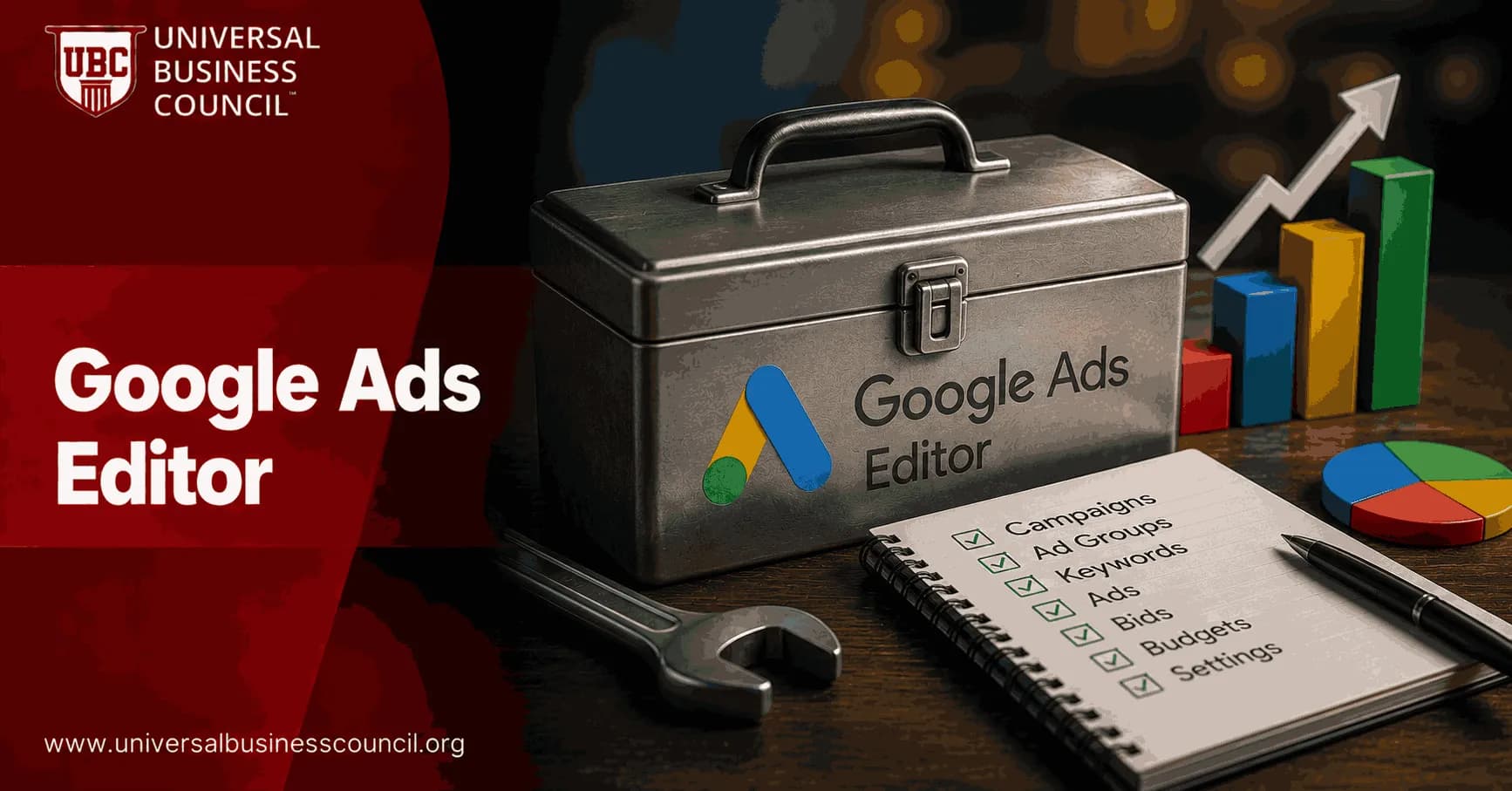
Google Ads Editor is the tool you reach for when campaign changes are too large, too repetitive, or too risky to make one item at a time in the browser interface. It is a free desktop application from Google. You download account data, work offline, make bulk edits, check for errors, and post changes only when you are ready.
That last part matters. A bulk edit is not just a faster click path. It is a controlled workflow. In agency practice, reviewed changes made in Editor tend to upload cleanly on the first pass far more often than unchecked bulk edits made straight in the web interface. The difference is rarely talent. It is process.

Managing large-scale Google Ads accounts efficiently requires more than knowing how to navigate the platform. Professionals also need expertise in campaign organization, bulk editing, quality assurance, workflow management, and optimization best practices. A Certified Google Ads Expert credential helps build these practical skills, enabling marketers to execute account-wide changes with greater confidence and accuracy.
What Google Ads Editor does best
Editor is built for high-volume account management. You can edit campaigns, ad groups, ads, assets, keywords, locations, schedules, final URLs, and tracking templates. You download the account, make edits locally, review warnings, then upload the final change set.
The web interface also has bulk editing. You can select multiple ads, keywords, or campaigns and apply changes directly, which is handy for quick adjustments. But when you are rebuilding a structure, changing hundreds of URLs, or rolling out a campaign template across regions, Editor is usually the better choice.
Use Editor when the change has structure
You are copying a proven campaign architecture into new markets.
You need to replace promotional copy across hundreds of responsive search ads.
You are cleaning duplicate keywords or inconsistent naming conventions.
You want to update final URLs or UTM parameters without touching each ad by hand.
You need an offline review step before anything goes live.
Use the browser interface for smaller changes: pausing a few ad groups, changing a daily budget, or applying a simple rule. To be blunt, using Editor for a two-keyword pause is overkill.
The core time-savers in Google Ads Editor
1. Select once, edit many records
The basic pattern is simple. Select multiple items in the center panel, then make one change in the edit panel on the right. That change applies to every selected item.
Use Ctrl+A on Windows, Command+A on macOS, or Shift-click to define the group. Then update bids, statuses, names, tracking fields, ad text, or settings in one move.
Here is the small mistake that bites first-time users. They select the right rows in the center panel but forget that the left navigation panel still includes campaigns they did not mean to touch. Always confirm your scope before editing. I have seen teams catch accidental edits to paused legacy campaigns only because they read the Recent Changes log before posting. That log is not decoration. Read it.
2. Find and replace campaign text
Find-and-replace is one of the fastest ways to save time in Editor. Use Ctrl+H on Windows or Command+H on macOS to replace text across selected ads, keywords, URLs, paths, or naming fields.
Common examples:
Replacing "Winter Sale" with "Spring Sale" in ad headlines.
Changing a city name across local campaign variants.
Updating display paths from "offers" to "pricing".
Swapping tracking parameters, such as utm_campaign=winter_sale to utm_campaign=spring_sale.
This is where discipline matters. Filter first. Replace second. Run a global replace at the wrong level of the account and you can create a cleanup job larger than the original task.
3. Append text for labels and naming conventions
Append text helps when you need consistent campaign or ad group naming. You might add "- BM" to broad match ad groups, "- US" to a market variant, or "- Q2" to a seasonal structure.
This sounds minor until you manage reporting across several brands or countries. Naming consistency affects filters, dashboards, scripts, and handoffs between teams. A messy naming system turns a five-minute report into a manual audit.
4. Copy and paste full campaign structures
Editor is excellent for templated builds. Copy a campaign, paste it multiple times, then adjust market names, budgets, locations, URLs, and ad copy. Agencies lean on this for regional rollouts where the structure is stable but the geography changes.
A practical workflow looks like this:
Build one template campaign with the right ad groups, keywords, ads, extensions, and settings.
Copy the campaign in Editor.
Paste it for each new market or product line.
Use Replace Text to swap locations, product names, or URL folders.
Filter to the new campaigns only, then adjust budgets and targeting.
You can also copy shells, meaning you replicate the structural framework without carrying over every piece of content. That is useful when the architecture is right but the ads must be rewritten for a new product or market.
5. Use advanced filters before bulk editing
Good filters prevent bad edits. In large accounts, never rely on scrolling. Filter by campaign name, status, label, ad type, match type, performance segment, or text pattern.
For example, isolate only enabled search keywords in campaigns containing "Brand" and ad groups containing "Exact". Then adjust only that subset. This is far safer than selecting rows visually.
Filters also help with hygiene work. You can find paused ads still using outdated promotional language, keywords with inconsistent match-type naming, or campaigns missing a required tracking template.
Bulk editing is most effective when it supports a broader marketing strategy that includes campaign planning, analytics, attribution, performance measurement, and reporting. A Certified Digital Marketing Expert credential helps professionals understand how operational efficiencies in Google Ads contribute to overall marketing performance and long-term business growth.
Spreadsheet and CSV workflows
For large batches, Editor works well with spreadsheets. Export account views, edit them in CSV format, then import them back. If your headers match the expected fields, Editor maps columns automatically.
This helps when you need formulas, lookup tables, or a review from someone outside the ad platform. A common workflow is to export keywords, clean duplicates in a spreadsheet, standardize match types, then re-import the cleaned list.
For URL changes, a spreadsheet is often safer than hand editing. Use formulas to build final URLs or tracking templates. Example:
=A2&"?utm_source=google&utm_medium=cpc&utm_campaign="&B2
That formula appends a UTM structure to a landing page in column A using a campaign value in column B. Simple. Useful. Easy to audit before upload.
A reliable workflow for bulk campaign edits
If you want faster execution without chaos, follow the same sequence every time.
Get recent changes. Start by syncing the latest account data. Stale downloads cause conflicts, especially when several people manage the same account.
Define the scope. Select the right campaigns or ad groups in the left panel. Use filters to narrow the actual edit set.
Make structural edits. Use bulk selection, find-and-replace, append text, copy-paste, or CSV import. Avoid hand typing where you can.
Run checks. Use Check changes and resolve red errors before posting. Warnings deserve attention too, especially policy and URL issues.
Review Recent Changes. Confirm what will be uploaded and look for surprising rows. Surprises before upload are cheap. Surprises after upload are not.
Post changes. Upload the change set as one commit.
Spot-check live. Open the Google Ads web interface and verify a sample of campaigns, ad groups, ads, and URLs.
For major restructures, export a backup file before editing. That gives you a rollback path if the build goes sideways or the team changes direction.
Large-scale advertising operations also depend on reliable technology, including analytics platforms, APIs, cloud infrastructure, automation tools, and spreadsheet-based workflows. A Tech Certification helps professionals strengthen these technical capabilities, making it easier to manage complex marketing technology environments while improving campaign accuracy and operational efficiency.
Google Ads Editor vs web bulk tools
Both tools belong in your workflow. They solve different problems.
Task | Best tool | Why |
|---|---|---|
Large account rebuild | Google Ads Editor | Offline editing, copy-paste structures, validation before posting |
Seasonal ad copy update | Google Ads Editor | Find-and-replace across many ads and URLs |
Small bid or budget change | Google Ads web interface | Fast live adjustment with minimal setup |
Shopping product group upload | Web bulk upload, often with Editor for related campaign edits | Spreadsheet upload and preview tools are strong for product group work |
Keyword cleanup | Google Ads Editor plus CSV | Filters, duplicate checks, and spreadsheet review improve accuracy |
Common mistakes to avoid
Editing a stale account download. Always get recent changes before you start.
Skipping filters. Bulk tools punish vague selection.
Posting without checking errors. This is where many failed uploads begin.
Replacing text too broadly. Test on a small filtered set first.
Ignoring naming conventions. Campaign names feed reporting, automation, and QA.
No backup before a restructure. Export the affected campaigns before risky work.
Where professionals should build skill next
Editor is not just a PPC shortcut. It is one part of a larger performance marketing operation that includes measurement, analytics, budget governance, and campaign QA. If you are building a formal marketing skill path, connect this topic with Universal Business Council study routes in digital marketing strategy, marketing analytics, and campaign management.
For developers and technical marketers, the next step is to pair Editor proficiency with Google Ads scripts, the Google Ads API, Google Analytics 4, and spreadsheet automation. Editor handles controlled bulk execution. Scripts and APIs handle repeatable automation. GA4 tells you whether the changes improved pipeline, ROAS, CAC, LTV, or conversion quality.
Final step: build your bulk-edit checklist
Open Editor and practice on a low-risk campaign. Download recent changes, filter one campaign, replace a harmless naming value, run Check changes, inspect Recent Changes, then discard the edit. Do that before your next real restructure.
Once the workflow is familiar, use Editor for the work it was built for: bulk campaign edits that need speed, control, and a clean audit trail.
As artificial intelligence, automation, predictive analytics, and advanced advertising technologies continue to transform campaign management, marketers benefit from expanding their technical expertise alongside platform knowledge. A Deep Tech Certification helps professionals develop a stronger understanding of these emerging technologies, preparing them to manage increasingly automated and data-driven digital marketing environments.
FAQs
1. What is Google Ads Editor?
Google Ads Editor is a free desktop application from Google that allows advertisers to manage Google Ads campaigns offline and make bulk changes efficiently. It supports downloading account data, editing campaigns locally, reviewing changes, and uploading updates when ready.
2. Why should advertisers use Google Ads Editor?
Google Ads Editor helps save time by enabling large-scale campaign management, offline editing, bulk updates, copy-and-paste functions, advanced search and filtering, and faster account organization. It is particularly useful for agencies and businesses managing multiple campaigns or large accounts.
3. How does Google Ads Editor work?
Advertisers download their Google Ads account into the Editor application, make changes locally, review edits for errors or warnings, and then upload approved changes back to Google Ads. This workflow allows multiple edits to be completed before publishing them online.
4. What types of changes can be made in Google Ads Editor?
Google Ads Editor supports editing campaigns, ad groups, keywords, Responsive Search Ads, assets, audiences, budgets, bids, locations, schedules, labels, negative keywords, and many other campaign settings. Supported features may evolve as Google Ads introduces new functionality.
5. What are bulk edits in Google Ads Editor?
Bulk edits allow advertisers to update many campaigns, ad groups, ads, or keywords simultaneously instead of making changes one item at a time. Examples include adjusting bids, updating URLs, changing budgets, replacing text, and applying labels across multiple campaigns.
6. How does Google Ads Editor improve productivity?
The application reduces repetitive manual work by offering copy and paste, find and replace, batch editing, import and export tools, duplicate creation, and reusable templates. These features can significantly improve efficiency for large-scale account management.
7. Can Google Ads Editor be used offline?
Yes. One of its primary advantages is offline editing. Advertisers can download account data, make changes without an internet connection, and upload updates later after reconnecting, which helps streamline planning and review workflows.
8. How do advertisers manage multiple accounts with Google Ads Editor?
Google Ads Editor supports multiple Google Ads accounts, allowing users to switch between them and manage campaigns from a single application. Agencies managing numerous client accounts often use this capability to improve operational efficiency.
9. How can campaigns be copied between accounts?
Campaigns, ad groups, keywords, and other supported campaign components can be copied and pasted between compatible accounts. Advertisers should carefully review settings such as budgets, targeting, bidding strategies, and tracking configurations before publishing copied campaigns.
10. How does Google Ads Editor help with keyword management?
Advertisers can add, edit, pause, remove, label, or replace keywords in bulk. The application also supports large-scale updates to keyword match types, bids, destination URLs, and negative keyword lists, helping streamline ongoing campaign optimization.
11. How can advertisers use search and replace features?
The search and replace function allows advertisers to update repeated text across campaigns quickly. Common use cases include modifying promotional messaging, updating URLs, changing calls to action, correcting spelling errors, or revising branding consistently across multiple ads.
12. Does Google Ads Editor support importing data?
Yes. Advertisers can import campaign data from spreadsheets and compatible file formats, making it easier to create or update campaigns in bulk. Imported changes should always be reviewed for accuracy before being uploaded to live accounts.
13. How does Google Ads Editor support quality control?
Before publishing changes, the application performs validation checks that identify errors, warnings, or incomplete configurations. Reviewing these messages helps advertisers reduce the likelihood of publishing campaigns with avoidable setup issues.
14. What are common mistakes when using Google Ads Editor?
Common mistakes include uploading unintended changes, failing to review edits before posting, overwriting recent online updates, importing incorrect spreadsheet data, modifying the wrong account, and making large-scale edits without maintaining version control or backups.
15. Which advertisers benefit most from Google Ads Editor?
Google Ads Editor is particularly valuable for digital marketing agencies, enterprise advertisers, ecommerce businesses, franchises, multinational organizations, and anyone managing numerous campaigns, extensive keyword lists, or frequent account updates.
16. How does Google Ads Editor work with automated bidding?
Google Ads Editor allows advertisers to manage campaigns that use automated bidding strategies while also supporting updates to compatible bidding settings where available. Advertisers should understand how automated bidding interacts with manual campaign changes before making large-scale adjustments.
17. What trends are shaping Google Ads Editor in 2025-2026?
Key trends include deeper support for AI-driven campaign features, improved compatibility with Performance Max campaigns, expanded asset management, enhanced workflow automation, stronger integration with Google Ads updates, and continued support for large-scale account management alongside increasing advertising automation.
18. What are best practices for using Google Ads Editor?
Regularly download the latest account changes before editing, review validation warnings, organize campaigns with labels, maintain version control, test significant changes on a smaller scale when practical, back up important work, and verify uploads after publishing to ensure updates were applied as intended.
19. What should advertisers consider before making bulk campaign edits?
Advertisers should confirm they are working in the correct account, verify campaign objectives, review budgets and bidding strategies, check targeting settings, validate tracking configurations, and carefully inspect proposed edits before uploading. Large-scale changes can affect campaign performance, so structured review processes are recommended.
20. What is the future of Google Ads Editor?
Google Ads Editor is expected to remain an important management tool for advertisers who need efficient bulk editing capabilities, even as Google continues expanding AI-powered automation within Google Ads. Future enhancements are likely to improve compatibility with new campaign types, creative assets, reporting features, and workflow efficiencies while supporting advertisers who require greater operational control. Automation keeps getting smarter, but sometimes nothing beats changing 5,000 keywords with a few clicks instead of spending a weekend introducing yourself to repetitive strain injuries.
Related Articles
View All
Google Ads
Google Ads Scripts: Essential Automation Ideas for Campaign Management
Google Ads Scripts automate budget pacing, reporting, URL checks, alerts, bidding rules, and search query management for better campaign control.
Google Ads
Google Ads for Lead Generation: Campaign Structures That Convert
Build Google Ads lead generation campaigns with high-intent Search, focused ad groups, Performance Max, CRM tracking, and value-based bidding for better lead quality.
Google Ads
Google Ads Campaign Types Explained: Search, Display, Shopping, Video, Performance Max, and More
A practical guide to Google Ads campaign types, including Search, Display, Shopping, Video, Performance Max, Demand Gen, App, Local Services, and Smart campaigns.
Trending Articles
The Role of Blockchain in Ethical AI Development
How blockchain technology is being used to promote transparency and accountability in artificial intelligence systems.
AWS Career Roadmap
A step-by-step guide to building a successful career in Amazon Web Services cloud computing.
Top 5 DeFi Platforms
Explore the leading decentralized finance platforms and what makes each one unique in the evolving DeFi landscape.